
Android UI控件系列:Button(按钮)
- 作者: 嗫?暁雲?
- 来源: 51数据库
- 2020-08-16
Button,就是按钮,是android中应用最多的组件之一,Button有两种用法,一种是XML中配置,另一种是在程序中直接使用
在XML布局文件里,会遇到如下一些单位
px:是屏幕的像素点
in:英寸
mm:毫米
pt:磅,1/72 英寸
dp:一个基于density的抽象单位,如果一个160dpi的屏幕,1dp=1px
dip:等同于dp
sp:同dp相似,但还会根据用户的字体大小偏好来缩放。
建议使用sp作为文本的单位,其它用dip
例1:在XML中布局,这样来设置控件以后修改起来会更方便,也符合了MVC模式
main.xml布局文件
<?xml version="1.0" encoding="utf-8"?>
<LinearLayout xmlns:android="http://schemas.android.com/apk/res/android"
? ? android:orientation="vertical"
? ? android:layout_width="fill_parent"
? ? android:layout_height="fill_parent"
? ? >
<TextView
? ? android:layout_width="fill_parent"
? ? android:layout_height="wrap_content"
? ? android:text="这是个Button示例"
? ? />
<Button
? ? ? ? android:layout_width="fill_parent"------充满父控件
? ? ? ? android:layout_height="wrap_content"------充满内容
? ? ? ? android:id="@+id/button1"----设置button的ID
? ? ? ? android:text="按钮一"? ? ------设置按钮的文本显示信息,也可以用string
/>
<Button
? ? ? ? android:layout_width="150dip"---按钮二的宽度
? ? ? ? android:layout_height="30dip"---按钮二的高度
? ? ? ? android:background="#aa00aa"---设置按钮背景颜色
? ? ? ? android:textColor="#00aa00"---设置按钮二里的文本颜色
? ? ? ? android:layout_gravity="center"---设置控件居中显示,注意:android:gravity="center"表是文本在控件中居中显示
? ? ? ? android:id="@+id/button2"
? ? ? ? android:text="按钮二"
/>
</LinearLayout>
TestButton.java源代码
package org.loulijun.button;

import android.app.Activity;
import android.os.Bundle;
import android.view.Gravity;
import android.view.View;
import android.widget.Button;
import android.widget.Toast;

public class TestButton extends Activity {
? ? /** Called when the activity is first created. */
? ? ? ? private Button btn1,btn2;
? ? @Override
? ? public void onCreate(Bundle savedInstanceState) {
? ? ? ? super.onCreate(savedInstanceState);
? ? ? ? setContentView(R.layout.main);
? ? ? ? btn1=(Button)findViewById(R.id.button1);---获得父控件id
? ? ? ? btn2=(Button)findViewById(R.id.button2);
? ? ? ? //为控件设置监听,当点击了按钮一,就弹出一个提示,当点击按钮二,退出程序
? ? ? ? btn1.setOnClickListener(new Button.OnClickListener()
? ? ? ? {

? ? ? ? ? ? ? ? ? ? ? ? @Override
? ? ? ? ? ? ? ? ? ? ? ? public void onClick(View arg0) {
? ? ? ? ? ? ? ? ? ? ? ? ? ? ? ? // TODO Auto-generated method stub
? ? ? ? ? ? ? ? ? ? ? ? ? ? ? ? Toast toast=Toast.makeText(TestButton.this, "你点击了按钮"+btn1.getText().toString(), Toast.LENGTH_SHORT);
? ? ? ? ? ? ? ? ? ? ? ? ? ? ? ? toast.setGravity(Gravity.TOP,0,150);
? ? ? ? ? ? ? ? ? ? ? ? ? ? ? ? toast.show();
? ? ? ? ? ? ? ? ? ? ? ? }

? ? ? ? });
? ? ? ? btn2.setOnClickListener(new Button.OnClickListener()
? ? ? ? {

? ? ? ? ? ? ? ? ? ? ? ? @Override
? ? ? ? ? ? ? ? ? ? ? ? public void onClick(View v) {
? ? ? ? ? ? ? ? ? ? ? ? ? ? ? ? // TODO Auto-generated method stub
? ? ? ? ? ? ? ? ? ? ? ? ? ? ? ? TestButton.this.finish();
? ? ? ? ? ? ? ? ? ? ? ? }

? ? ? ? });
? ? }
}
运行结果:
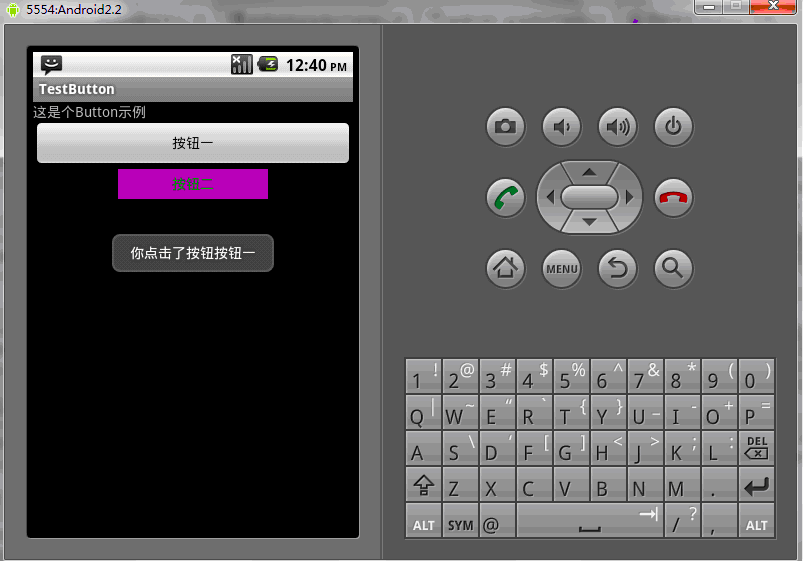
当然,也可以直接在程序中使用相应的方法来这是Button的相应属性
public class TestButton extends Activity{
private Button btn1,btn2;
public void onCreate(Bundle savedInstanceState)
{
? ? ? ? super.onCreate(savedInstanceState);
? ? ? ? setContentView(R.layout.main);
? ? ? ? btn1=(Button)findViewById(R.id.button1);
? ? ? ? btn2=(Button)findViewById(R.id.button2);
? ? ? ? btn1.setWidth(150);--设置按钮宽度,当然也可以用setHeight()来设置高度
? ? ? ? btn2.setWidth(100);
? ? ? ? btn1.setText("按钮一");---设置按钮文本显示信息
? ? ? ? btn2.setText("安妮二");
? ? ? ? btn1.setTextColor(Color.GREEN);---设置按钮内文本颜色
? ? ? ? btn2.setTextColor(Color.RED);
? ? ? ? btn1.setTextSize(30);---设置按钮内文本大小
? ? ? ? btn2.setTextSize(20);
? ? ? ? btn2.setBackgroundColor(Color.RED);---设置按钮背景颜色
}
}
推荐阅读
热点文章

android中Bitmap用法(显示,保存,缩放,旋转)实例分析
12
android 仿微信聊天气泡效果实现思路
1
Android的尺度,drawable-xxxxxxx
2

Codeforces Round #656 (Div. 3) (C、D题)
1
Android之handler异步消息处理机制解析
6
GridView中图片显示出现上下间距过大,左右图片显示类似瀑布流的问题
0
AsyncTask的简单使用
5
两个简单Fragment之间的通信(三种方式)
18
uboot修改设置boot参数命令
41
android中实现从相册中一次性获取多张图片与拍照,并将选中的图片显示出来
2
