
android实现圆环倒计时控件
- 作者: sadasfsdf
- 来源: 51数据库
- 2021-08-09
本文实例为大家分享了android实现圆环倒计时控件的具体代码,供大家参考,具体内容如下
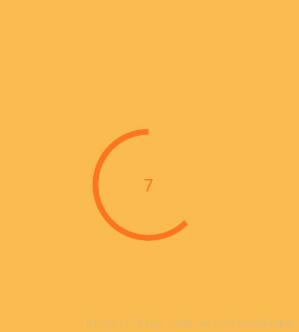
1.自定义属性
<?xml version="1.0" encoding="utf-8"?>
<resources>

 <!-- 倒计时控件属性 -->
 <declare-styleable name="countdownview">
 <!--颜色-->
 <attr name="ringcolor" format="color" />
 <!-- 进度文本的字体大小 -->
 <attr name="progresstextsize" format="dimension" />
 <!-- 圆环宽度 -->
 <attr name="ringwidth" format="float" />
 <!--进度文本颜色-->
 <attr name="progresstextcolor" format="color"/>
 <!--倒计时-->
 <attr name="countdowntime" format="integer"/>
 </declare-styleable>
</resources>
2.自定义view
public class countdownview extends view {
 //圆环颜色
 private int mringcolor;
 //圆环宽度
 private float mringwidth;
 //圆环进度值文本大小
 private int mringprogesstextsize;
 //宽度
 private int mwidth;
 //高度
 private int mheight;
 private paint mpaint;
 //圆环的矩形区域
 private rectf mrectf;
 //
 private int mprogesstextcolor;
 private int mcountdowntime;
 private float mcurrentprogress;


 valueanimator valueanimator;

 /**
 * 监听事件
 */
 private oncountdownlistener mlistener;

 public countdownview(context context) {
 this(context, null);

 }

 public countdownview(context context, @nullable attributeset attrs) {
 this(context, attrs, 0);


 }

 public countdownview(context context, @nullable attributeset attrs, int defstyleattr) {
 super(context, attrs, defstyleattr);
 // init();

 /**
  * 获取相关属性值
  */
 typedarray typedarray = context.obtainstyledattributes(attrs, r.styleable.countdownview);
 mringcolor = typedarray.getcolor(r.styleable.countdownview_ringcolor, context.getresources().getcolor(r.color.coloraccent));
 mringwidth = typedarray.getfloat(r.styleable.countdownview_ringwidth, 40);
 mringprogesstextsize = typedarray.getdimensionpixelsize(r.styleable.countdownview_progresstextsize, 20);
 mprogesstextcolor = typedarray.getcolor(r.styleable.countdownview_progresstextcolor, context.getresources().getcolor(r.color.coloraccent));
 mcountdowntime = typedarray.getinteger(r.styleable.countdownview_countdowntime, 60);
 typedarray.recycle();
 mpaint = new paint(paint.anti_alias_flag);
 mpaint.setantialias(true);
 this.setwillnotdraw(false);

 }

 @override
 protected void onlayout(boolean changed, int left, int top, int right, int bottom) {
 super.onlayout(changed, left, top, right, bottom);
 mwidth = getmeasuredwidth();
 mheight = getmeasuredheight();

 mrectf = new rectf(0 + mringwidth / 2, 0 + mringwidth / 2,
  mwidth - mringwidth / 2, mheight - mringwidth / 2);
 }


 /**
 * 设置倒计时间 单位秒
 * @param mcountdowntime
 */
 public void setcountdowntime(int mcountdowntime) {
 this.mcountdowntime = mcountdowntime;

 invalidate();

 }

// public countdownview(context context, @nullable attributeset attrs, int defstyleattr, int defstyleres) {
// super(context, attrs, defstyleattr, defstyleres);
// }

 /**
 * 动画
 * @param countdowntime
 * @return
 */
 private valueanimator getvalueanimator(long countdowntime) {
 valueanimator valueanimator = valueanimator.offloat(0, 100);
 valueanimator.setduration(countdowntime);
 valueanimator.setinterpolator(new linearinterpolator());
 valueanimator.setrepeatcount(0);
 return valueanimator;
 }

 @override
 protected void ondraw(canvas canvas) {
 super.ondraw(canvas);

 /**
  *圆环
  */
 //颜色
 mpaint.setcolor(mringcolor);
 //空心
 mpaint.setstyle(paint.style.stroke);
 //宽度
 mpaint.setstrokewidth(mringwidth);
 canvas.drawarc(mrectf, -90, mcurrentprogress - 360, false, mpaint);
 //绘制文本
 paint textpaint = new paint();
 textpaint.setantialias(true);
 textpaint.settextalign(paint.align.center);
 string text = mcountdowntime - (int) (mcurrentprogress / 360f * mcountdowntime) + "";
 textpaint.settextsize(mringprogesstextsize);
 textpaint.setcolor(mprogesstextcolor);

 //文字居中显示
 paint.fontmetricsint fontmetrics = textpaint.getfontmetricsint();
 int baseline = (int) ((mrectf.bottom + mrectf.top - fontmetrics.bottom - fontmetrics.top) / 2);
 canvas.drawtext(text, mrectf.centerx(), baseline, textpaint);
 }


 /**
 * 开始倒计时
 */
 public void startcountdown() {
 valueanimator = getvalueanimator(mcountdowntime * 1000);
 valueanimator.addupdatelistener(new valueanimator.animatorupdatelistener() {
  @override
  public void onanimationupdate(valueanimator animation) {
  float i = float.valueof(string.valueof(animation.getanimatedvalue()));
  mcurrentprogress = (int) (360 * (i / 100f));
  invalidate();
  }
 });
 valueanimator.start();
 valueanimator.addlistener(new animatorlisteneradapter() {
  @override
  public void onanimationend(animator animation) {
  super.onanimationend(animation);
  //倒计时结束回调
  if (mlistener != null) {
   mlistener.countdownfinished();
  }
  }

 });
 }


 /**
 * 停止倒计时
 */
 public void stopcountddwn(){

 valueanimator.cancel();


 }
 public void setoncountdownlistener(oncountdownlistener mlistener) {
 this.mlistener = mlistener;
 }
}
3.布局文件
<?xml version="1.0" encoding="utf-8"?>
<android.support.constraint.constraintlayout xmlns:android="http://schemas.android.com/apk/res/android"
 xmlns:app="http://schemas.android.com/apk/res-auto"
 xmlns:tools="http://schemas.android.com/tools"
 android:layout_width="match_parent"
 android:layout_height="match_parent"
 tools:context=".mainactivity">

 <demo.com.countdowndemo.countdownview
 android:id="@+id/countdownview"
 android:layout_width="50dp"
 android:layout_height="50dp"
 app:countdowntime="5"
 app:ringwidth="2"
 app:layout_constraintbottom_tobottomof="parent"
 app:layout_constraintleft_toleftof="parent"
 app:layout_constraintright_torightof="parent"
 app:layout_constrainttop_totopof="parent" />

</android.support.constraint.constraintlayout>
4.activity
public class mainactivity extends appcompatactivity {

 countdownview countdownview;

 @override
 protected void oncreate(bundle savedinstancestate) {
 super.oncreate(savedinstancestate);
 setcontentview(r.layout.activity_main);

  countdownview = findviewbyid(r.id.countdownview);

 countdownview.setoncountdownlistener(new oncountdownlistener() {
  @override
  public void countdownfinished() {
  //倒计时结束
  //countdownview.setcountdowntime(10);

  intent intent = new intent(mainactivity.this, main2activity.class);
  startactivity(intent);
  }
 });

 countdownview.startcountdown();


 countdownview.setonclicklistener(new view.onclicklistener() {
  @override
  public void onclick(view v) {
  countdownview.stopcountddwn();
  intent intent = new intent(mainactivity.this, main2activity.class);
  startactivity(intent);
  }
 });
 }
}
以上就是本文的全部内容,希望对大家的学习有所帮助,也希望大家多多支持。
推荐阅读
热点文章

android中Bitmap用法(显示,保存,缩放,旋转)实例分析
12

android 仿微信聊天气泡效果实现思路
1
Android的尺度,drawable-xxxxxxx
2

Codeforces Round #656 (Div. 3) (C、D题)
1
Android之handler异步消息处理机制解析
6

GridView中图片显示出现上下间距过大,左右图片显示类似瀑布流的问题
0
AsyncTask的简单使用
5
两个简单Fragment之间的通信(三种方式)
18
uboot修改设置boot参数命令
41
android中实现从相册中一次性获取多张图片与拍照,并将选中的图片显示出来
2
