
Android自定义控件实现通用验证码输入框(二)
- 作者: 亖呉?盀
- 来源: 51数据库
- 2021-08-13
本文实例为大家分享了android实现通用验证码输入框第2篇具体实现代码,供大家参考,具体内容如下
效果图
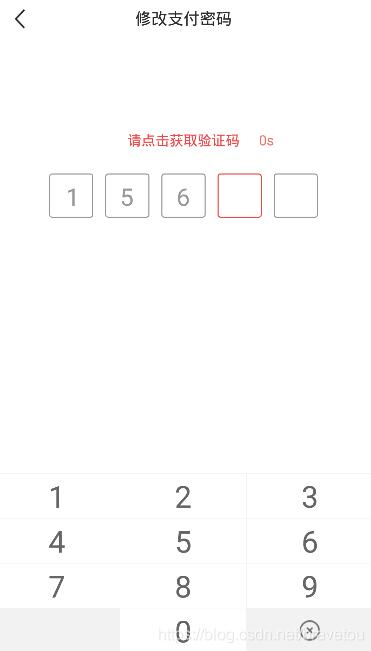
话不多说,我们还是先上效果图,可以先先看看是不是自己想要的
闲聊
这种验证码输入框使用组合控件就比较烦人了,所以这边直接使用自定view步奏实现
源码
自定义输入框属性(attrs.xml)
<?xml version="1.0" encoding="utf-8"?>
<resources>

  <declare-styleable name="codeinputview">
    <!-- 边框宽度 -->
    <attr name="borderwidth"
      format="dimension" />
    <!-- 边框高度 -->
    <attr name="borderheight"
      format="dimension" />
    <!-- 边框间距 -->
    <attr name="borderspacing"
      format="dimension" />
    <!-- 边框背景图 -->
    <attr name="borderimage"
      format="reference" />
    <!-- 最大输入长度 -->
    <attr name="android:maxlength" />
  </declare-styleable>

</resources>
资源文件(code_input_view_border_bg.xml)
<?xml version="1.0" encoding="utf-8"?>
<selector xmlns:android="http://schemas.android.com/apk/res/android">

  <item android:state_focused="true">
    <shape android:shape="rectangle">
      <corners android:radius="5mm" />
      <stroke android:width="2mm"
        android:color="@color/colormain" />
    </shape>
  </item>

  <item android:state_enabled="true">
    <shape android:shape="rectangle">
      <corners android:radius="5mm" />
      <stroke android:width="2mm"
        android:color="@color/colortextlight" />
    </shape>
  </item>

</selector>
自定义控件(codeinputview.java)
import android.annotation.suppresslint;
import android.content.context;
import android.content.res.typedarray;
import android.graphics.canvas;
import android.graphics.color;
import android.graphics.rect;
import android.graphics.drawable.drawable;
import android.os.build;
import android.text.inputfilter;
import android.text.textpaint;
import android.util.attributeset;
import android.widget.edittext;

import androidx.annotation.requiresapi;
import androidx.core.content.contextcompat;

/**
 * <pre>
 *   <b>author</b>  :bravetou
 *   <b>blog</b>   :http://www.51sjk.com/Upload/Articles/1/0/246/246560_20210620000401709.jpg
 *   <b>time</b>   :2020/9/8 11:49
 *   <b>desc</b>   :<pre>
 *     自定义验证码输入框
 *   </pre>
 * </pre>
 */
@suppresslint("appcompatcustomview")
public class codeinputview extends edittext {
  // <!-- 最大输入长度 -->
  private int mmaxlength = 4;
  // <!-- 边框宽度 -->
  private int mborderwidth = 100;
  // <!-- 边框高度 -->
  private int mborderheight = 100;
  // <!-- 边框间距 -->
  private int mborderspacing = 24;
  // <!-- 边框背景图 -->
  private drawable mborderimage;

  // 用矩形来保存方框的位置、大小信息
  private final rect mrect = new rect();

  // 文本颜色
  private int mtextcolor;

  public codeinputview(context context) {
    super(context);
    init(context, null);
  }

  public codeinputview(context context, attributeset attrs) {
    super(context, attrs);
    init(context, attrs);
  }

  public codeinputview(context context, attributeset attrs, int defstyleattr) {
    super(context, attrs, defstyleattr);
    init(context, attrs);
  }

  @requiresapi(api = build.version_codes.lollipop)
  public codeinputview(context context, attributeset attrs, int defstyleattr, int defstyleres) {
    super(context, attrs, defstyleattr, defstyleres);
    init(context, attrs);
  }

  // 初始化
  private void init(context context, attributeset attrs) {
    if (null == mborderimage) {
      mborderimage = contextcompat.getdrawable(context,
          r.drawable.code_input_view_border_bg);
    }
    initattrs(context, attrs);
    // 设置最大输入长度
    setmaxlength(mmaxlength);
    // 禁止长按
    setlongclickable(false);
    // 去掉背景颜色
    setbackgroundcolor(color.transparent);
    // 不显示光标
    setcursorvisible(false);
  }

  // 设置最大长度
  private void setmaxlength(int maxlength) {
    if (maxlength >= 0) {
      setfilters(new inputfilter[]{new inputfilter.lengthfilter(maxlength)});
    } else {
      setfilters(new inputfilter[0]);
    }
  }

  // 初始化属性
  private void initattrs(context context, attributeset attrs) {
    if (null != attrs) {
      // attributeset 属性值的索引
      typedarray o = context.obtainstyledattributes(attrs, r.styleable.codeinputview);
      // <!-- 最大输入长度 -->
      mmaxlength = o.getinteger(r.styleable.codeinputview_android_maxlength, 4);
      // <!-- 边框宽度 -->
      mborderwidth = (int) o.getdimension(r.styleable.codeinputview_borderwidth, 100f);
      // <!-- 边框高度 -->
      mborderheight = (int) o.getdimension(r.styleable.codeinputview_borderheight, 100f);
      // <!-- 边框间距 -->
      mborderspacing = (int) o.getdimension(r.styleable.codeinputview_borderspacing, 24);
      // <!-- 边框背景图 -->
      drawable drawable = o.getdrawable(r.styleable.codeinputview_borderimage);
      if (null != drawable) {
        mborderimage = drawable;
      }
      // 回收资源
      o.recycle();
    }
  }

  @override
  protected void onmeasure(int widthmeasurespec, int heightmeasurespec) {
    super.onmeasure(widthmeasurespec, heightmeasurespec);
    // 当前输入框的宽高信息
    int width = getmeasuredwidth();
    int height = getmeasuredheight();
    int widthmode = measurespec.getmode(widthmeasurespec);
    int heightmode = measurespec.getmode(heightmeasurespec);

    // 判断高度是否小于自定义边框高度
    height = height < mborderheight ? mborderheight : height;

    // 自定义输入框宽度 = 边框宽度 * 数量 + 边框间距 * (数量 - 1)
    int customwidth = mborderwidth * mmaxlength
        + mborderspacing * ((mmaxlength - 1) > 0 ? (mmaxlength - 1) : 0);

    // 判断宽度是否小于自定义宽度
    width = width < customwidth ? customwidth : width;

    widthmeasurespec = measurespec.makemeasurespec(width, widthmode);
    heightmeasurespec = measurespec.makemeasurespec(height, heightmode);

    // 重新设置测量布局
    setmeasureddimension(widthmeasurespec, heightmeasurespec);
  }

  @override
  protected void ondraw(canvas canvas) {
    // 获取当前输入文本颜色
    mtextcolor = getcurrenttextcolor();
    // 屏蔽系统文本颜色,直接透明
    settextcolor(color.transparent);
    // 父类绘制
    super.ondraw(canvas);
    // 重新设置文本颜色
    settextcolor(mtextcolor);
    // 重绘背景
    drawborderbackground(canvas);
    // 重绘文本
    drawtext(canvas);
  }

  // 绘制背景
  private void drawborderbackground(canvas canvas) {
    // 下面绘制方框背景颜色
    // 确定反馈位置
    mrect.left = 0;
    mrect.top = 0;
    mrect.right = mborderwidth;
    mrect.bottom = mborderheight;
    // 当前画布保存的状态
    int count = canvas.getsavecount();
    // 保存画布
    canvas.save();
    // 获取当前输入字符串长度
    int length = geteditabletext().length();
    for (int i = 0; i < mmaxlength; i++) {
      // 设置位置
      mborderimage.setbounds(mrect);
      // 设置图像状态
      if (i == length) {
        // 当前输入位高亮的索引
        mborderimage.setstate(new int[]{android.r.attr.state_focused});
      } else {
        // 其他输入位置默认
        mborderimage.setstate(new int[]{android.r.attr.state_enabled});
      }
      // 画到画布上
      mborderimage.draw(canvas);
      // 确定下一个方框的位置
      // x坐标位置
      float dx = mrect.right + mborderspacing;
      // 保存画布
      canvas.save();
      // [注意细节] 移动画布到下一个位置
      canvas.translate(dx, 0);
    }
    // [注意细节] 把画布还原到画反馈之前的状态,这样就还原到最初位置了
    canvas.restoretocount(count);
    // 画布归位
    canvas.translate(0, 0);
  }

  // 绘制文本
  private void drawtext(canvas canvas) {
    int count = canvas.getsavecount();
    canvas.translate(0, 0);
    int length = geteditabletext().length();
    for (int i = 0; i < length; i++) {
      string text = string.valueof(geteditabletext().charat(i));
      textpaint textpaint = getpaint();
      textpaint.setcolor(mtextcolor);
      // 获取文本大小
      textpaint.gettextbounds(text, 0, 1, mrect);
      // 计算(x,y) 坐标
      int x = mborderwidth / 2 + (mborderwidth + mborderspacing) * i - (mrect.centerx());
      int y = canvas.getheight() / 2 + mrect.height() / 2;
      canvas.drawtext(text, x, y, textpaint);
    }
    canvas.restoretocount(count);
  }
}
使用
<relativelayout
    android:layout_width="match_parent"
    android:layout_height="wrap_content">

    <*.*.*.widget.codeinputview
      android:id="@+id/mcodeinputview"
      android:layout_width="wrap_content"
      android:layout_height="wrap_content"
      android:layout_centerinparent="true"
      android:layout_margintop="56mm"
      android:maxlength="5"
      android:text="156"
      android:textsize="48mm"
      app:borderheight="88mm"
      app:borderspacing="24mm"
      app:borderwidth="88mm" />

</relativelayout>
以上就是本文的全部内容,希望对大家的学习有所帮助,也希望大家多多支持。
推荐阅读
热点文章

android中Bitmap用法(显示,保存,缩放,旋转)实例分析
12
android 仿微信聊天气泡效果实现思路
1
Android的尺度,drawable-xxxxxxx
2

Codeforces Round #656 (Div. 3) (C、D题)
1
Android之handler异步消息处理机制解析
6

GridView中图片显示出现上下间距过大,左右图片显示类似瀑布流的问题
0
AsyncTask的简单使用
5
两个简单Fragment之间的通信(三种方式)
18
uboot修改设置boot参数命令
41
android中实现从相册中一次性获取多张图片与拍照,并将选中的图片显示出来
2
